


Docs navigation
Vertical Frame
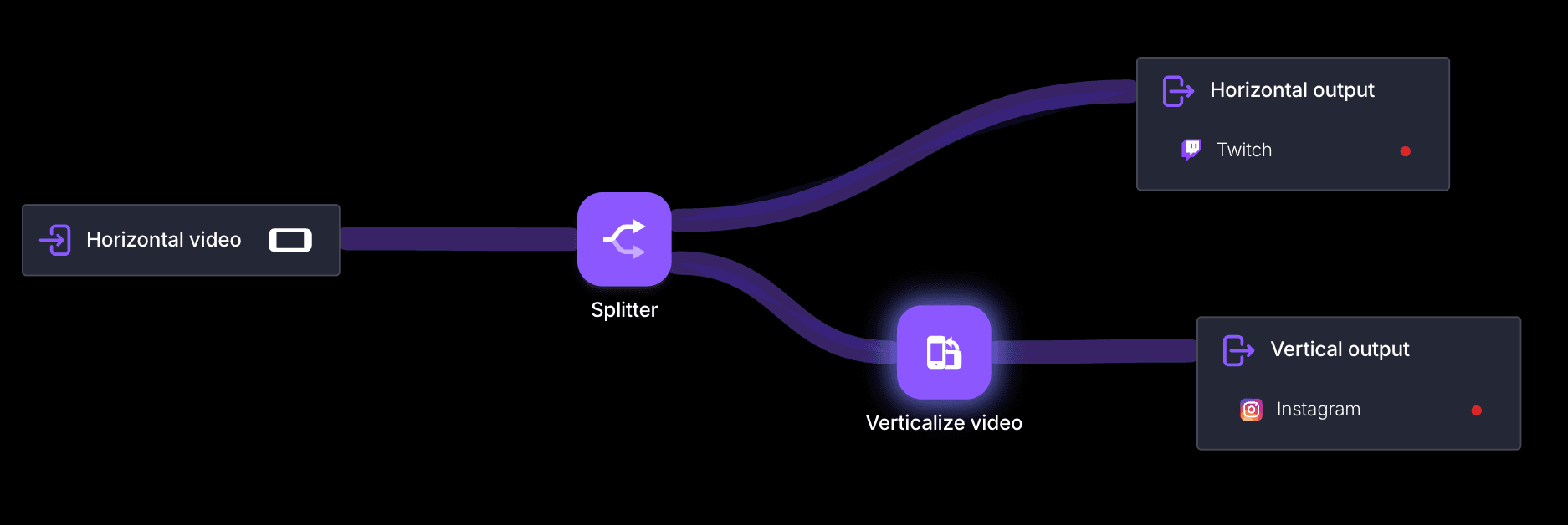
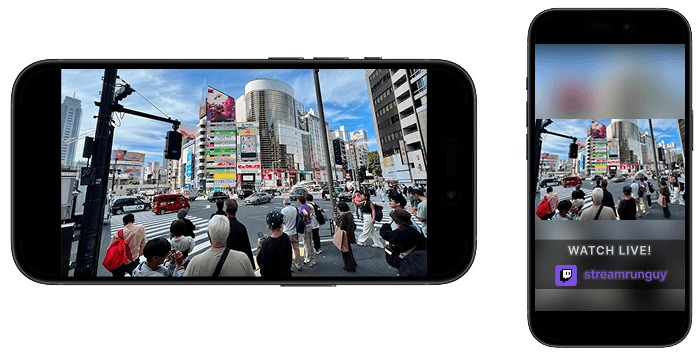
The Vertical Frame element automatically converts a horizontal video into a vertical format, making it ready for platforms that prefer portrait viewing. Choose between a blurred or solid black background to fill the extra space, and apply zoom for a polished look. Repurpose your existing horizontal streams without extra editing to reach mobile audiences more easily.
To see how this fits into a full single-upload workflow, read Automatic Vertical Framing.
Vertical mode
Automatic
Streamrun automatically analyzes the incoming video and selects the most suitable framing method.
IRL and general content
AI-powered subject tracking automatically follows the presenter and updates the crop in real time. This works well for IRL streams, talking-head content, interviews, and other non-gaming content.
Game streams
Streamrun automatically detects and extracts the facecam from the stream. The facecam is displayed below the gameplay, creating a vertical layout optimized for mobile viewing without any manual setup.
Manual
Manually configure the vertical layout. Available controls include:
- Crop position and size
- Framing and composition
- Background style
- Facecam extraction and placement
Manual mode provides full control over how the vertical stream is generated.
Manual framing settings
Background
Choose between a blurred background (blurs the horizontal video to fill the frame) or a solid black background.
Zoom and crop
Increase the vertical size of the video by cropping the sides, or use the 100% setting to fill the entire frame.
Vertical shift
Move the video vertically by this number of pixels. Negative values move it up, positive values move it down. Disabled when Zoom factor is 100%.
Crop horizontal shift
Move the video crop position horizontally. Negative values move it left, positive values move it right. Disabled when no cropping is applied.
Facecam extraction
Streamrun can extract and crop the facecam directly from an incoming horizontal stream and show it as a separate element, creating a near-native vertical experience. Define the facecam region by specifying x, y, width, and height coordinates relative to the incoming 1920×1080 stream.

Facecam extraction
Enable to crop the facecam from the incoming 1920×1080 stream and display it separately in the vertical frame.
X, Y, Width, Height
Define the facecam coordinates and dimensions. The cropped facecam's width matches the vertical frame's width and height maintains the aspect ratio.
Facecam vertical shift
Adjust the vertical position of the facecam. Negative values move it up, positive values move it down.
Related
Dual Format Streaming
Stream in horizontal and vertical formats simultaneously.
Automatic Vertical Framing
See the product-level workflow for automatic vertical generation and live auto-framing.
Twitch Dual Format
Stream in both horizontal and vertical formats on Twitch.
PNG Overlay
Add graphics to your vertical stream output.
All elements
Overview of every element available in a Streamrun configuration.
 Join Streamrun Discord