


Docs navigation
YouTube Dual Stream
YouTube Dual Stream lets you broadcast a horizontal and a vertical version of your content on YouTube simultaneously, with a horizontal view and a vertical view for the mobile Shorts feed. Streamrun sends both orientations from a single configuration and can generate the vertical version for you.
For automatic vertical generation and framing, see Automatic Vertical Framing. For background on how YouTube Dual Stream compares to Twitch Dual Format, see YouTube Dual Stream explained.
YouTube Dual Stream needs setup on YouTube's side
Using Streamrun with YouTube's Encoder mode requires a separate horizontal and vertical stream key before Streamrun can send both orientations. Once that is done, the Streamrun side is the same as any other dual format stream.
Step-by-step guide
In YouTube Studio
- 1
Go to YouTube Studio at studio.youtube.com.
- 2
From the top right, click Create and then Go live.
- 3
Make sure you are on the Stream page from the left sidebar.
- 4
Under Stream settings, turn on Dual stream before starting the broadcast.
- 5
Horizontal: click the "Key" dropdown and create or select a stream key.
- 6
Vertical: choose Encoder from the Auto menu and use RTMP(S). A "Key" dropdown appears. Select a vertical stream key.
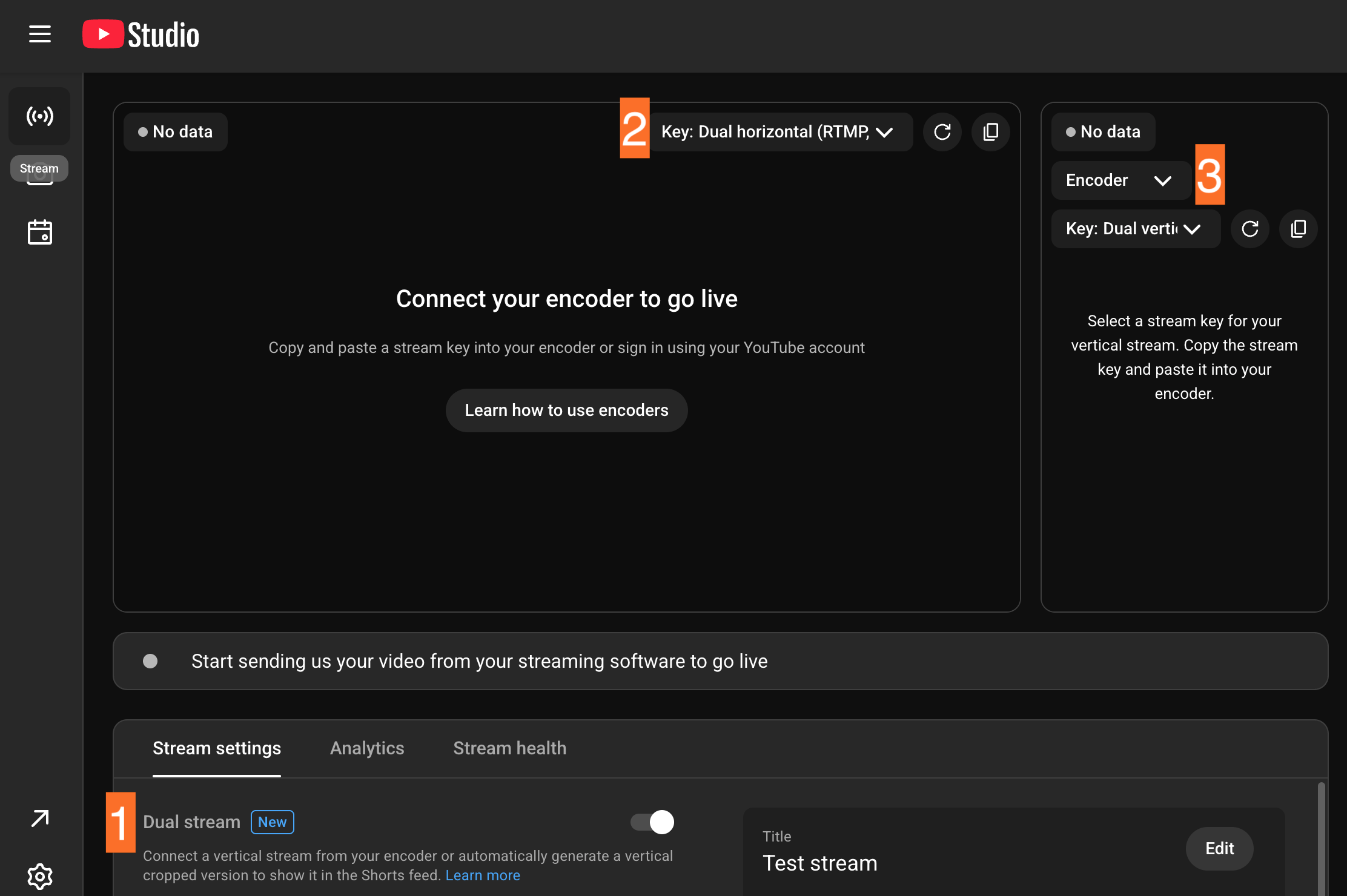
1. Enable Dual stream
2. Select horizontal stream key
3. Select vertical type "Encoder" and select a vertical stream key
Connect Streamrun and go live
- 7
Create a YouTube destination on the Stream destinations page and copy both YouTube stream keys there.
- 8
Create a Streamrun configuration with an Output stream element of type "YouTube Dual Stream", select your YouTube destination, then go live in Streamrun.
- 9
Check both previews in YouTube Studio, then go live there.
Ways to create the vertical output
Streamrun can generate the vertical automatically with the Vertical Frame element, or you can bring your own vertical canvas using a Dual HD resolution or a separate vertical Input element. See Dual Format Streaming for the full setup of each method.
Troubleshooting YouTube Dual Stream
Horizontal works but vertical is missing
In Encoder mode, confirm the vertical key matches the destination in Streamrun and that the Output Stream element receives a vertical picture. Check Preview in Streamrun, then the vertical preview in YouTube Studio. Configure both before starting the broadcast.
Where can viewers watch the vertical version?
The vertical version appears in the Shorts feed in the YouTube mobile app. Other viewing surfaces show horizontal video.
How do I turn off Dual stream?
In Live Control Room, open Stream, then Stream settings, and turn off Dual stream. Check this setting when preparing each broadcast.
See YouTube's Dual Stream instructions for platform settings.
Related
Twitch Dual Format
The automatic dual format path, with no platform setup required.
Dual Format Streaming
Overview of all three dual format methods in Streamrun.
Automatic Vertical Framing
See how Streamrun creates the vertical version automatically and routes it per destination.
Output Destinations
Add your YouTube stream keys as output destinations.
 Join Streamrun Discord