


OBS + Streamrun:
More Reliable,
More Control
Your OBS scenes, sources, and overlays stay exactly as they are. The only change is where OBS sends the stream: instead of going straight to Twitch or YouTube, it goes to Streamrun, which handles delivery, multistreaming, and recovery from connection issues.
What changes in OBS
- One setting changes: in Settings → Stream, you point OBS at Streamrun instead of directly at a platform. That is the only change inside OBS.
- Everything else stays: scenes, sources, overlays, transitions, audio, hotkeys.
- Streamrun handles the rest: multistreaming, disconnect recovery, and per-platform output control in the cloud.
OBS is excellent. Direct streaming has limits.
OBS is one of the most capable streaming tools available. It handles scene composition, audio mixing, encoding, and a large plugin ecosystem. None of that changes when you add Streamrun. What changes is what happens after your stream leaves OBS.
When OBS streams directly to a platform, your local network is the only thing standing between your broadcast and your audience. That creates a set of constraints that cannot be solved in OBS alone.
Network stability
A single dropped connection ends your stream, or at minimum causes visible disruption. OBS has no mechanism to hold the stream live if your connection fails.
Multiple destinations
Streaming to two or more platforms at once requires uploading separate streams from your machine, multiplying your bandwidth usage.
No failover
If your connection drops, viewers see a stream offline notification. There is no way to show a holding image or video while you reconnect.
Limited live control
Output destinations cannot be toggled independently while streaming. Stopping one platform means restarting or stopping the entire stream.
What Streamrun adds to your OBS setup
Streamrun handles the delivery side. You encode once in OBS and send one stream to Streamrun. The rest happens in the cloud.
Signal path
Disconnect protection
When OBS loses its connection to Streamrun, the server-to-platform connections stay active. Viewers see a failover image or video instead of an offline screen. When you reconnect, the broadcast continues.
Multistreaming
Send one stream from OBS. Go supports up to two destinations with shared processing. Pro supports unlimited destinations with independent encoding settings. Your upload bandwidth is used once regardless of destination count.
Cloud-side processing
Apply overlays, switch between inputs, and configure platform-specific layouts in Streamrun independently from your OBS setup. No additional encoding load on your machine.
Live output control
Go live to individual platforms or take them offline independently during a broadcast. No need to stop and restart your OBS stream.
Device switching
Switch to a different streaming app mid-stream without ending the broadcast. Useful for jumping from a desktop to a phone.
Remote control
Control your stream outputs from a phone or tablet while OBS runs on your desktop. No need to be at your machine to take a destination live or offline.
What becomes possible with a cloud layer
Some features require processing between your encoder and the platforms. These are not things OBS does poorly. These are things that don't exist when streaming directly to a destination.
Dual format streaming
Compose your scene horizontally in OBS and let Streamrun build the vertical version automatically in the cloud, with live subject tracking for IRL and facecam extraction for gaming. You run a single encoder and never design a separate vertical scene.
Twitch Dual Format is now available to all streamers, and Streamrun delivers it natively: one OBS stream becomes both a horizontal and a vertical feed on Twitch, plus vertical to TikTok or YouTube Shorts when you multistream.
Automatic Vertical Framing →Switch devices while live
When OBS streams directly to a platform, stopping the encoder ends the broadcast. With Streamrun in between, the broadcast is held by the server.
You can stop OBS on your desktop, pick up your phone, and start streaming from a mobile app to the same Streamrun input. Viewers see no interruption. This is useful for transitioning from a studio setup to IRL, or handing off between operators during an event.
Device switching →Per-destination overlays
OBS composes one output. Every platform gets the same video with the same graphics baked in. Streamrun Pro applies overlays per destination in the cloud, after your stream leaves OBS.
This means you can show a Twitch chat overlay on your Twitch stream and a YouTube chat overlay on YouTube. Different sponsor graphics, different ad placements, different branding per platform, all from one OBS session with no additional encoding on your machine.
Who benefits from OBS with Streamrun
This setup is most valuable when direct streaming creates real problems.
Multiplatform streamers
You want to reach Twitch, YouTube, and Kick simultaneously without running multiple encoding passes or using all your upload bandwidth.
Long-session streamers
A single disconnect mid-broadcast is costly. Adding a disconnect protection and failover keeps the stream running through brief network interruptions.
Event and production setups
Multiple operators need to control outputs independently. Streamrun's remote control lets you manage live/offline states from anywhere during the event.
IRL streamers using OBS on a laptop
Laptop connections over cellular or venue Wi-Fi are unstable. Routing through Streamrun adds reconnect handling and failover that OBS cannot provide on its own.
Streamers on unstable internet
Home connections with frequent packet loss or congestion benefit from SRT input to Streamrun, which absorbs the instability before it reaches the platform.
Remote productions
You need to manage stream destinations while away from your streaming machine. Streamrun's remote control runs from any phone or browser.
How to connect OBS to Streamrun
Start with Streamrun Go for disconnect protection, dual format streaming, or up to two destinations. Choose Streamrun Pro when you need independent encoding, overlays, or a custom workflow. Your OBS scenes, sources, and overlays stay the same.
Create a Streamrun account and set up your stream
For Go, sign up and follow the setup steps to connect your destinations and add fallback content. For Pro, create a configuration in the visual editor or start from a template, then add the inputs, processing, and output destinations your workflow needs.
Copy your Streamrun ingest URL and stream key
Streamrun gives you a server URL and a stream key, just like Twitch or YouTube does. For Go, copy them from your Go page. For Pro, use the editor or remote control page. Both an RTMP URL and an SRT URL are provided so you can choose which protocol to use. See the input stream docs for details on ingest URLs, protocols, and connection parameters.
Change the stream destination in OBS
Open OBS and go to Settings → Stream. This is the same screen where you would normally enter your Twitch or YouTube stream key.
For RTMP
Service: Custom...
Server: paste your Streamrun RTMP ingest URL
Stream Key: paste your Streamrun stream key
For SRT
Service: Custom...
Server: paste your full srt:// URL (includes the stream key and latency settings in the URL itself)
Leave the Stream ID field empty when using SRT. All parameters are in the URL.
Start streaming
Click Start Streaming in OBS as usual. Your stream goes to Streamrun. For Go, select your destinations and start the session from the Go page. For Pro, use remote control to take each destination live when you are ready.
Recommended OBS settings for Streamrun
These settings apply to the OBS output that goes to Streamrun. Your bitrate and resolution choices depend on your upload bandwidth and content type, but the encoder and keyframe settings below apply broadly.
Encoder
Use a hardware encoder where available: NVENC on Nvidia GPUs, AMF on AMD GPUs, or VideoToolbox on Mac. Hardware encoders offload processing to a dedicated chip, which keeps your CPU free and reduces the risk of encoder overload on long streams.
Software encoders (x264, x265) work as well and give more control over encoding parameters. They increase CPU load, which matters on weaker machines or when running demanding scenes.
Streamrun also accepts modern codecs on input. If your GPU encodes HEVC or AV1 in OBS, you can send that to Streamrun for better quality at a lower bitrate, and Streamrun handles the right output codec for each destination.
Key settings
| Setting | Recommended value |
|---|---|
| Keyframe interval | 2 seconds |
| B-frames | disable |
| Bitrate (video) | 4,000–8,000 kbps for 1080p. Stay below 70% of your available upload bandwidth. |
| Audio codec | AAC |
| Audio bitrate | 160 kbps |
| Sample rate | 48 kHz |
RTMP or SRT
Both protocols work with Streamrun. Which to use depends on your network:
- RTMP: simpler to configure, works well on stable wired connections. Select your Streamrun ingest as a Custom service in OBS stream settings.
- SRT: more resilient on unstable connections. Retransmits lost packets instead of dropping the stream. Use if you experience intermittent disconnects on RTMP. Set the service to Custom in OBS and enter the srt:// URL.
For a deeper look at how the protocols differ, see the RTMP vs SRT comparison.
Streaming to multiple platforms from OBS
Streaming to multiple platforms from OBS requires uploading a separate stream for each, which multiplies your bandwidth usage and increases CPU load.
With Streamrun, you upload once. Streamrun distributes that stream to all your configured destinations simultaneously. Your machine handles one upload regardless of how many platforms you stream to.
With Streamrun Pro, each destination can have independent encoding settings. You can send a horizontal 1080p stream to Twitch and a vertical stream for TikTok from the same OBS output.
Without Streamrun
With Streamrun
When OBS alone is not enough
Some scenarios push past what local streaming can reliably handle. These are the cases where a cloud layer makes the most practical difference.
Unstable or mobile networks
Wi-Fi, cellular, and venue networks introduce packet loss and congestion that RTMP handles poorly. SRT to Streamrun absorbs that instability before it reaches the platform.
Disconnect prevention guide →Long broadcasts
The longer a stream runs, the more likely a brief network glitch becomes. Disconnect protection keeps the stream live through short interruptions without requiring a restart.
How disconnect protection works →Live events
Events demand reliability. A dropped stream at an important moment is costly. Failover and reconnect handling reduce the risk of viewers seeing an offline screen.
Failover and backup inputs →IRL streaming with a laptop
Laptops on cellular or venue Wi-Fi encounter all the instability of mobile connections. Routing through Streamrun adds the same protection IRL streamers use on phones.
IRL streaming overview →Advanced workflows with Streamrun Pro
With Streamrun Pro, custom configurations are available through the Streamrun editor.
Backup input
Configure a second input source as a backup. If your OBS stream drops, Streamrun switches to the backup automatically.
Failover setup →Failover video
Upload video files or an image to display when no live signal is coming in. Fallback clips can play randomly so viewers see your holding screen instead of the stream going offline.
Failover setup →Device switching
Switch from OBS on your desktop to a phone or another encoder while the stream is live. No interruption to your audience.
Device switching →Per-destination overlays
Apply different overlays to each platform in the cloud. Keep sponsor graphics on one destination while showing a clean feed on another.
Dual format output
Send horizontal video from OBS and let Streamrun build the vertical automatically, then deliver both formats to Twitch Dual Format and vertical to TikTok or YouTube Shorts.
Automatic Vertical Framing →Custom vertical from OBS
Prefer to compose the vertical yourself? Send Streamrun a separate vertical output (for example via the Aitum Vertical plugin) or a combined DualHD canvas (1920 + 720 = 2640 wide), and Streamrun adds delivery, multistreaming, and disconnect protection on top.
Dual format methods compared →API control
Automate output management with the Streamrun REST API. Start and stop streams, toggle destinations, and override settings programmatically.
API documentation →Troubleshooting common OBS issues
Most OBS streaming problems fall into a few categories. Here is where to start.
OBS disconnects from Streamrun
Make sure that your bitrate is not exceeding your available upload. If disconnects are infrequent and brief, switch to SRT input. SRT retransmits lost packets and survives short interruptions that would drop an RTMP connection.
Dropped frames in OBS
Dropped frames usually mean either your network cannot sustain the bitrate (reduce bitrate) or your encoder is falling behind (reduce resolution, switch to a hardware encoder, or lower scene complexity). Check OBS stats panel for which type of drop you are seeing.
Encoder overload warning
Your CPU cannot keep up with the encoding settings. Switch to a hardware encoder (NVENC, AMF, VideoToolbox), reduce your output resolution, or lower the quality preset on x264.
Stream stops unexpectedly
Check for network drops first: run a continuous upload test and watch for drops during the time OBS stops. Also check your OBS log for connection timeout messages. If the issue persists on a stable connection, verify your stream key is correct and that your Streamrun instance is running.
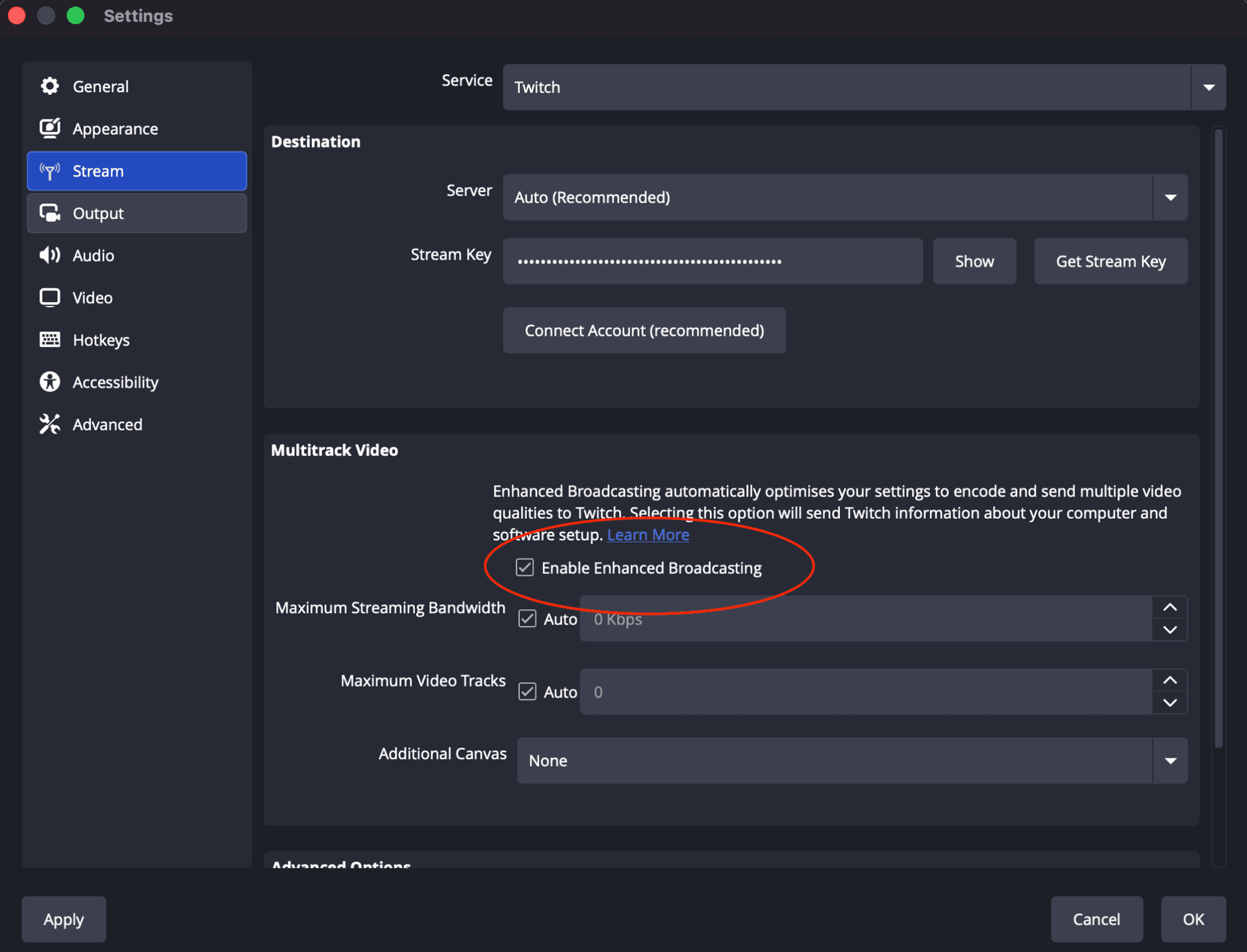
OBS error: “No config URL available for the current service”
This is a known OBS bug. If you previously turned on Twitch's “Enable Enhanced Broadcasting” setting, OBS can fail to connect to a Custom service such as your Streamrun ingest. To fix it:
- In OBS, go to Settings → Stream and set Service to Twitch.
- Uncheck Enable Enhanced Broadcasting.
- Set Service back to Custom.
- Enter your Streamrun server URL and stream key, then start streaming.
For a more thorough breakdown of disconnect causes and fixes, see the stream disconnect guide.
Frequently asked questions
Can I use OBS with Streamrun?
Yes. OBS works with Streamrun out of the box. You point OBS at your Streamrun ingest URL and stream key instead of directly at Twitch or YouTube. Everything else in your OBS setup stays the same: scenes, sources, overlays, scene transitions.
Does Streamrun add latency to my stream?
Streamrun adds roughly one to two seconds of latency on the path from OBS to the Streamrun server, depending on your geographic distance to the server. Typically, this is not perceptible to viewers.
Should I use RTMP or SRT from OBS to Streamrun?
Both work. RTMP is the simpler setup and works well on stable wired connections. SRT is more resilient on unstable networks: instead of dropping the stream when packets are lost, it retransmits them within a configurable time window. If you stream from a desktop on ethernet and rarely drop, RTMP is fine. If you ever stream on Wi-Fi, over a long distance, or experience occasional disconnects, SRT is the better choice. You can switch between them without changing anything on the Streamrun side.
Do I need a powerful computer to use OBS with Streamrun?
No more than you do for OBS alone. Streamrun does not run on your computer. You encode once in OBS and send one stream to Streamrun. The cloud handles delivery to multiple platforms, encoding for each destination, and any overlays you have configured there. Your PC workload is the same as streaming to one destination directly.
Can I still stream directly to Twitch from OBS?
Yes. Streaming through Streamrun does not prevent you from also streaming directly to Twitch. However, most users choose one path or the other. Streaming through Streamrun gives you multistreaming, disconnect protection, and device switching. Streaming directly to Twitch skips those features but removes one network hop.
Does this work with OBS SRT output?
Yes. In OBS, set the service to Custom, and enter your Streamrun SRT ingest URL. SRT parameters like latency go directly in the URL query string. The recommended starting latency is about 0.5-1 second for wired or stable Wi-Fi. Increase to 2-4 seconds if you are on cellular or a connection with frequent packet loss.
Can I switch OBS scenes normally while using Streamrun?
Yes. Scene switching, transitions, audio mixing, and everything else in OBS works exactly as normal. Streamrun only receives the final composed output that OBS sends, the same stream that would go to Twitch or YouTube directly. Your OBS scene setup is untouched.
Ready to connect OBS to Streamrun?
Connect OBS with Go for a ready-made setup, or build a custom configuration with Pro.