


How to Stream Vertical on Twitch
In OBS, enable Enhanced Broadcasting and select Aitum Vertical as the Additional Canvas to send horizontal and vertical video together. With Streamrun Go, enable Twitch Dual Format to generate the vertical picture from your horizontal input.
On Twitch this almost always means Dual Format, which is generally available: one stream carries both orientations and each viewer gets the one that suits their screen. The real question is how the vertical picture gets composed.
Set up OBS and Aitum Vertical
Use this workflow when you want to compose both pictures on your computer.
Check Twitch's setup and hardware requirements before starting.
Install OBS and Aitum Vertical
Use OBS Studio 32 or newer and the latest Aitum Vertical plugin. Restart OBS after installation.
Select the additional canvas
In OBS Settings > Stream, connect Twitch, enable Enhanced Broadcasting, and choose Aitum Vertical under Additional Canvas.
Build and link your vertical scenes
Open the Vertical docks, arrange your sources on a 1080x1920 canvas, and link each vertical scene to its horizontal scene. Disable Aitum Backtrack if it is enabled.
Check both orientations
Start streaming and inspect the horizontal view on desktop and the portrait view in the Twitch mobile app. Monitor delivery with Twitch Inspector.
On Twitch, vertical means Dual Format
Twitch will accept a plain 9:16 stream on an ordinary stream key, and some guides still describe that as the way to stream vertical. In practice it is rarely the right call. That stream is vertical for every viewer, including everyone on a monitor or TV, where a 9:16 picture occupies a narrow strip in the middle of the player. Twitch viewing still skews heavily toward desktop, so a vertical-only stream trades away the majority experience to serve the minority one.
Dual Format removes that trade-off, and it is generally available to all Twitch users. One feed carries both compositions, Twitch serves the orientation that suits each viewer's device, and it all runs on a single stream key. Your horizontal output is unchanged, and mobile viewers get a picture that fills their screen. Your streaming software must send both compositions using Twitch Enhanced Broadcasting.
That is why the rest of this page is about how the vertical half gets composed. Vertical-only is worth considering in one case: a channel whose audience is already almost entirely mobile, streaming content that was shot upright to begin with. For everyone else, Dual Format is the answer. See what dual format streaming is for how one feed carries two orientations.
Three ways to produce the vertical picture
Something has to decide what belongs inside the 9:16 frame. These are the options, with what each one costs you. They are listed easiest first, not best first.
Cropped from your horizontal feed
Send your normal horizontal stream to a server, which crops it to 9:16 and follows the subject inside the frame, then delivers both orientations onward.
- One upload, both orientations, no extra local encoding
- Works from a phone as well as from OBS
- The same vertical output can go to other platforms too
- −The crop is decided automatically rather than composed by hand
- −A cropped 9:16 frame loses whatever sat at the edges of the wide shot
- −Adds a cloud hop, so a small amount of latency
From a second phone
Two devices feed the same pipeline: one phone held horizontal, one held vertical. Both orientations come from a camera actually framed for them, and hand rigs exist that hold both phones in one hand for IRL.
- Both orientations are properly composed, not cropped
- No extra encoding load on either device
- Each phone can be positioned independently
- −A second phone, a second data connection, and a second battery to manage
- −A rig to carry, which matters most on long IRL streams
- −Two shots to keep pointed at the right thing
From a vertical canvas in OBS
Build a vertical composition with Aitum Vertical, then select it as the additional canvas for Twitch Enhanced Broadcasting in OBS.
- Full control over the vertical layout
- Vertical-specific overlays you design yourself
- No cloud hop in the path
- −Encodes and uploads two compositions at once, roughly doubling local load and bandwidth
- −A second set of scenes to build and maintain
- −Not usable from a phone-only setup
What usually goes wrong
Horizontal works, vertical is missing
In OBS, check Additional Canvas and the selected Vertical scene. In Streamrun Go, select Twitch Dual Format. In Pro, use the Twitch Dual Format output type and connect its vertical port. Confirm the vertical picture in Preview before going live.
Overlays sliced off at the edges
Alerts, chat boxes, and sponsor graphics designed for 16:9 sit outside a 9:16 crop. Either move them toward the centre or use per-destination overlays so each orientation gets its own layout.
A static crop that misses the action
A fixed centre crop works until you move. If the vertical version is cropped from a horizontal feed, it needs to follow the subject rather than sit in one place for the whole stream.
Running out of upload bandwidth
Sending two compositions from one machine means two encodes and two uploads. On a home connection this is often fine, on cellular it rarely is. That constraint is what pushes most IRL setups toward a second device or a cloud-generated crop instead.
Text that is unreadable on the crop
Game HUDs, scoreboards, and small captions survive a widescreen frame but disappear in a narrow one. Check anything text-heavy on an actual phone before committing to a vertical workflow.
How Streamrun fits into this
Streamrun supports all three routes. Streamrun Go generates the vertical picture from your horizontal input. Streamrun Pro can generate it in the cloud or accept a separate vertical feed from a second phone or an OBS vertical scene. Both orientations go to a single Twitch destination. With cloud-generated vertical video, your device sends one stream and does no additional encoding for the vertical output.
A Streamrun pipeline also accepts more than one input, which is what makes the two-phone route practical. One phone streams horizontal, the other streams vertical, both connect to the same pipeline, and each output takes the source that was framed for it. Neither phone carries any extra encoding load, since each one is sending a single stream.
The same vertical output can go to other platforms at the same time. YouTube handles this differently from Twitch: YouTube Dual Stream uses a separate stream key for each orientation in Encoder mode.
Automatic vertical with Streamrun Go
- Connect Twitch on Output destinations.
- Open the Go setup, select Twitch, and enable Twitch Dual Format.
- Copy the Streamrun server URL and stream key into your streaming app. Send your horizontal stream to Streamrun.
- Check the preview, then start the outgoing broadcast. Streamrun generates the vertical picture in the cloud.
Separate pictures with Streamrun Pro
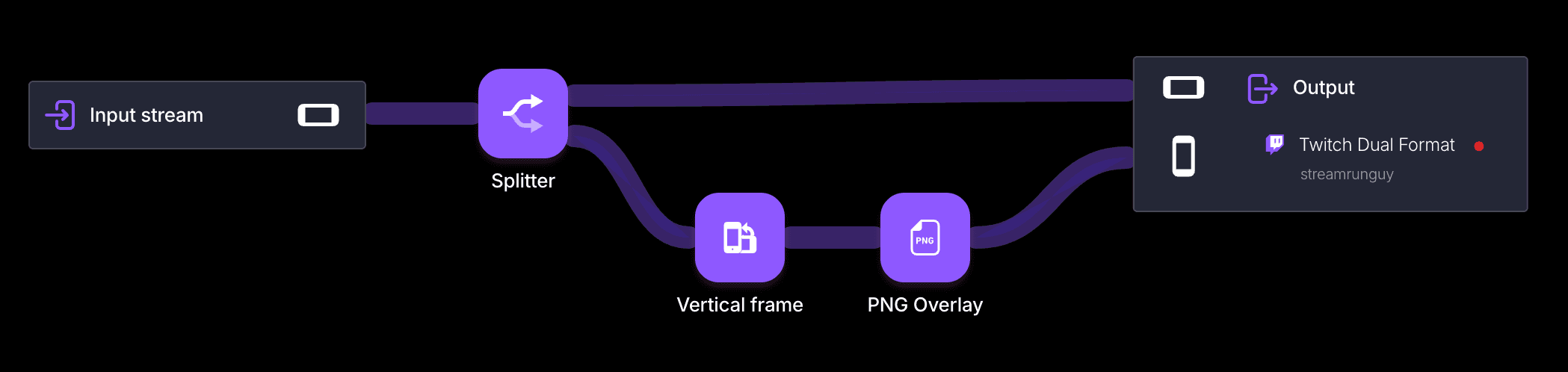
- Add an Input Stream and an Output Stream element in the editor. Set the output type to Twitch Dual Format and select your Twitch destination.
- Use a Splitter to send the horizontal input to the horizontal output port and through a Vertical Frame element to the vertical port.
- For a second phone or an OBS vertical scene, add a separate vertical input instead. Send each source to its own input URL and key, then connect it to the matching output port.
- Start the inputs and check both orientations in Preview. Start the outgoing broadcast when both pictures are ready.
Frequently asked questions
How do I stream vertical on Twitch?
Configure both a horizontal and a vertical picture in software that supports Twitch Dual Format. Follow the “Set up OBS and Aitum Vertical” section, or use Streamrun Go to generate the vertical picture from one horizontal input.
Do I need to enable Dual Format on Twitch?
Dual Format is generally available, but your sending software must be configured to provide both orientations. Enhanced Broadcasting support alone does not create a vertical composition.
Should I stream vertical only on Twitch?
Usually not. Twitch will accept a plain 9:16 stream, but it is then vertical for every viewer, and Twitch viewing still skews heavily toward desktop, where a 9:16 picture leaves most of the player empty and small text becomes hard to read. Dual Format gives mobile viewers the vertical version without costing your desktop audience anything, so vertical-only mainly makes sense for channels whose audience is already almost entirely mobile.
Can I use two phones, one horizontal and one vertical?
Yes, if your streaming server accepts more than one input. Both phones connect to the same pipeline, one shooting horizontal and one shooting vertical, and each output takes the source framed for it. Both frames are then properly composed rather than cropped, and neither phone does extra work because each is sending a single stream. Hand rigs that hold two phones in one hand are available, which makes this workable for IRL.
Do I need OBS to stream vertical on Twitch?
No. A streaming server can generate a vertical output from any RTMP or SRT input. OBS is the route that requires the most local setup: a vertical canvas, a second set of scenes, and enough encoding and bandwidth headroom to run a horizontal output at the same time.
How do I stream both vertical and horizontal from OBS?
Use the “Set up OBS and Aitum Vertical” section. A vertical scene must be selected as the additional canvas for Enhanced Broadcasting. Creating a separate vertical output alone does not configure Twitch Dual Format.
What resolution should a vertical Twitch stream be?
For the OBS and Aitum workflow, start with a 1080x1920 vertical canvas. For Streamrun, follow the resolution and frame-rate settings in the Twitch Dual Format documentation.
Can I send the vertical version to TikTok or Instagram too?
Yes, and this is a common reason to produce vertical in the first place. Once a vertical output exists, it can go to any platform that accepts vertical video. A streaming server can route the horizontal output to Twitch and Kick and the vertical output to the mobile-first platforms from the same upload.
Related
What Is Dual Format Streaming?
How one stream carries both a horizontal and a vertical composition.
Automatic Vertical Framing
How a vertical crop follows the streamer instead of sitting in one place.
Twitch Enhanced Broadcasting
What the newer Twitch ingest path enables, and what it requires.
OBS Integration
Setting OBS up to stream through a server instead of directly to a platform.
Try Dual Format on your own stream
Stream horizontally as you already do, or add a second phone for the vertical shot. Either way the dual-format feed goes to Twitch from one stream key.